Personal keys
Each Retyc account is associated with a cryptographic key pair (age format) which is at the heart of the end-to-end encryption system.
Your key pair
| Key | Storage | Accessible by Retyc? |
|---|---|---|
| Public key | Retyc servers | Yes (that is its role) |
| Private key | Retyc servers, encrypted by your passphrase | No |
The passphrase
Your passphrase is the only way to unlock your private key. It is chosen by you when you create your account and is never transmitted to Retyc.
If you lose your passphrase, Retyc cannot reset it. You will lose access to files encrypted with your current keys.
Best practices
- Use a long passphrase (12 words or more) rather than a short password
- Store it in a password manager (Bitwarden, 1Password, etc.)
- Never share it with anyone
Unlocking your keys
The first time you access encrypted files in a session, Retyc asks for your passphrase. Your private key is then decrypted locally in your browser for the duration of the session.
If you close your browser or remain inactive for too long, you will need to enter your passphrase again.
Managing your keys from the dashboard
Go to Dashboard > Encryption keys to:
- View your public key
- Change your passphrase — the private key remains the same, only its protection changes
- Perform a key rotation — generates a new key pair
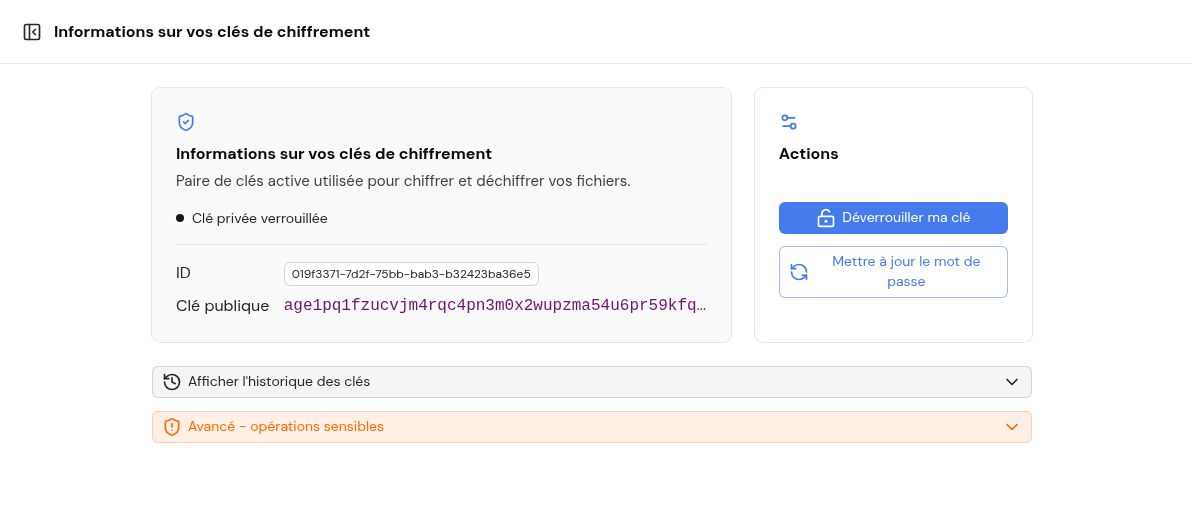
Your public key is shown in the age1pq1… format, characteristic of Retyc's hybrid post-quantum identities (see
End-to-end encryption). The Actions block lets you unlock the key or update its passphrase;
sensitive operations (rotation, revocation) are grouped in the Advanced section.
Changing your passphrase
Changing the passphrase only modifies the protection of your private key: the key itself remains unchanged. Your existing files remain accessible without any additional operation.
- Go to Dashboard > Encryption keys
- Click on Change passphrase
- Enter your current passphrase to unlock your private key
- Choose and confirm your new passphrase
- Confirm
The operation takes place entirely in your browser — the decrypted private key never leaves your device.
:::tip Changing the passphrase vs. key rotation Change the passphrase if you simply want to update your protection password (e.g.: you used a weak passphrase, or you think it has been exposed). Perform a key rotation if you think the private key itself has been compromised. :::
Key rotation
What is it for?
Key rotation consists of generating a new key pair (public + private) and replacing the old one. It is useful in these situations:
- You suspect your private key has been compromised (unauthorized access to your session, lost or stolen device)
- You want to change your passphrase definitively by starting from scratch
- Your organization requires periodic rotation of cryptographic keys
How to perform a rotation
The rotation takes place in several guided steps:
- Go to Dashboard > Encryption keys
- Click on Perform key rotation
- Unlock your current keys with your passphrase
- Retyc generates a new key pair — choose a new passphrase to protect it
- Re-encryption: the browser automatically re-encrypts all your existing transfers and data rooms with the new key
- Once complete, the old key is permanently revoked: its private key is deleted from the server
Re-encryption takes place entirely in your browser. If the process is interrupted, your data is not lost — a "Finalize rotation" alert will appear on the Keys page to allow you to resume where you left off.
After rotation
- All your transfers and data rooms are now encrypted with your new key
- The old key is irreversibly revoked — it can no longer decrypt anything
- If the rotation is complete, there is no active "legacy" key: all your data uses the new key