Outlook Extension
The Retyc extension for Outlook lets you send large files directly from your email client. Files are encrypted client-side and uploaded directly to Retyc — they never go through Outlook attachments.
The extension is open source: github.com/retyc/retyc-outlook-plugin
Compatibility
- Outlook on the web (OWA / Microsoft 365)
- Outlook 2016 or later (Windows and Mac)
Installation
1. Open the add-ins manager
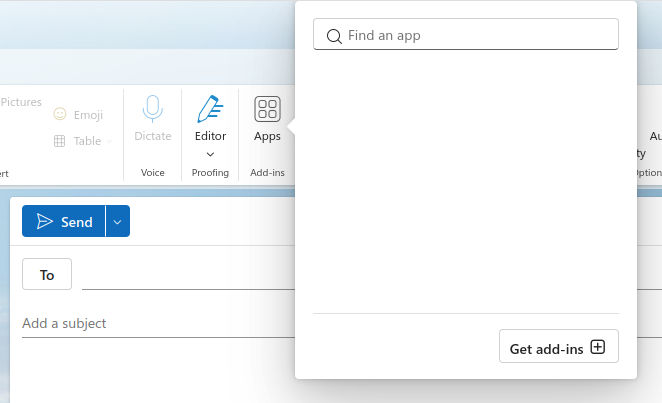
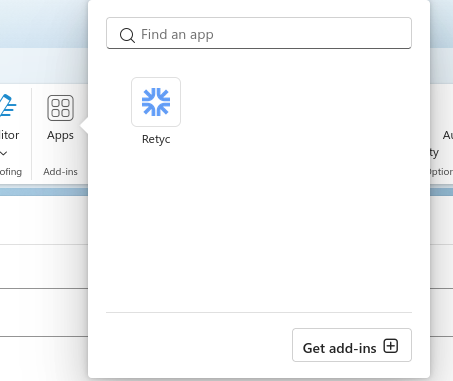
In the email compose window, click the Apps button in the toolbar, then click Get add-ins at the bottom of the panel.
2. Search for Retyc
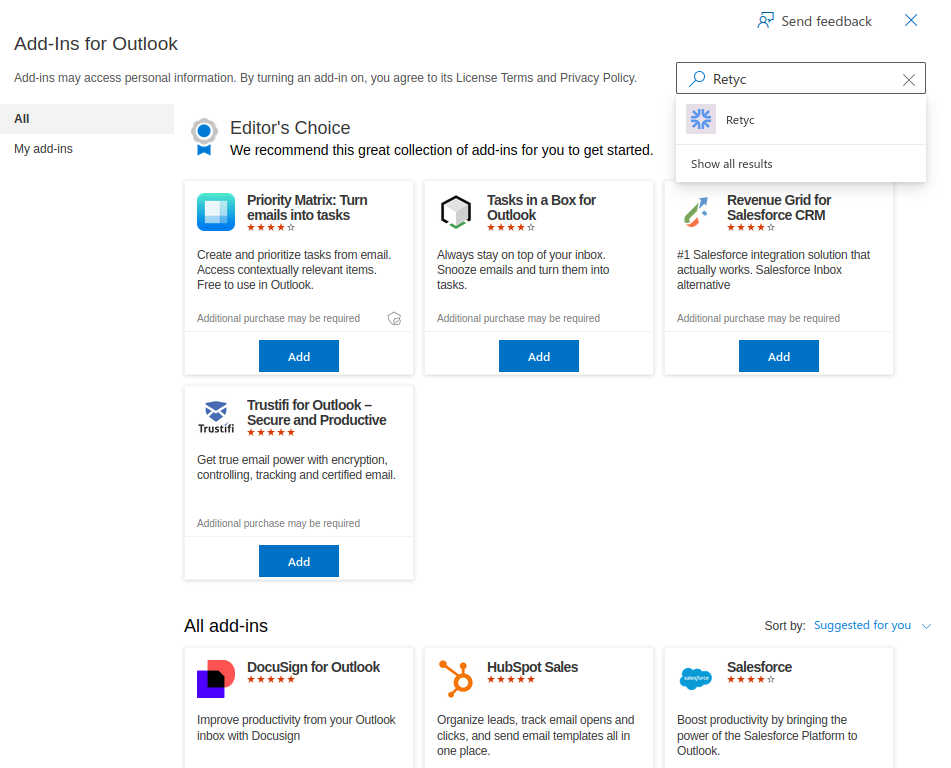
In the search bar, type Retyc and click on the result.
3. Install the extension
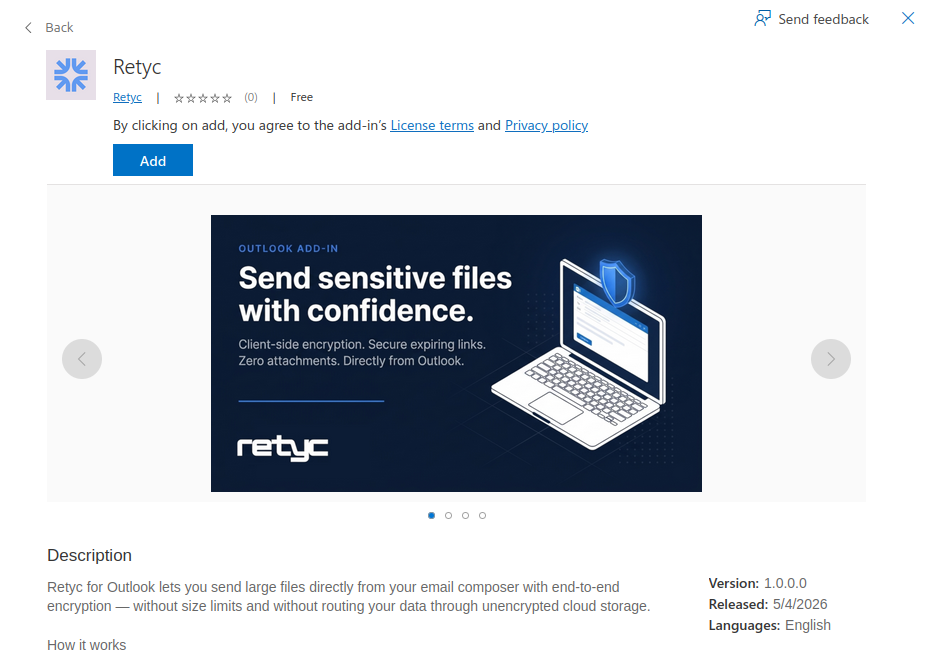
On the extension page, click Add.
The Retyc extension now appears in the Apps panel.
First login
Click Retyc in the Apps panel. The login window opens:
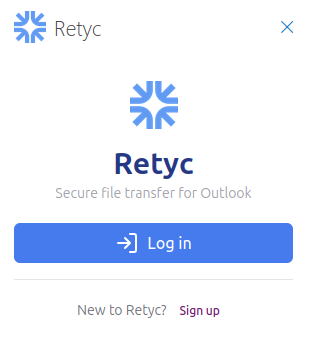
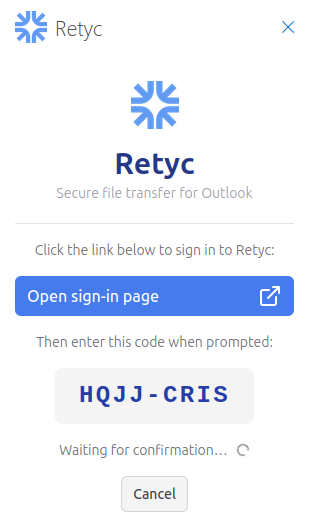
Click Log in. Then click Open sign-in page to open the authentication page in your browser, and enter the code displayed.
Usage
Click Retyc in the Apps panel to open the transfer panel. Add your files, enter the recipient's email address, then click Encrypt & insert Retyc link.
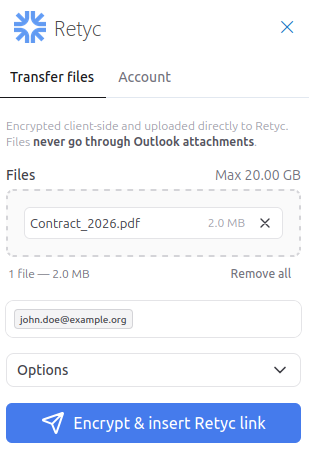
Files are encrypted client-side and uploaded to Retyc:
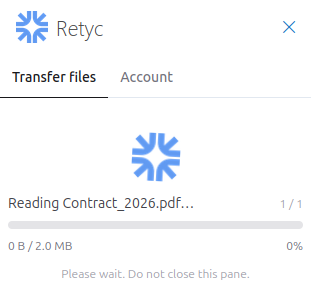
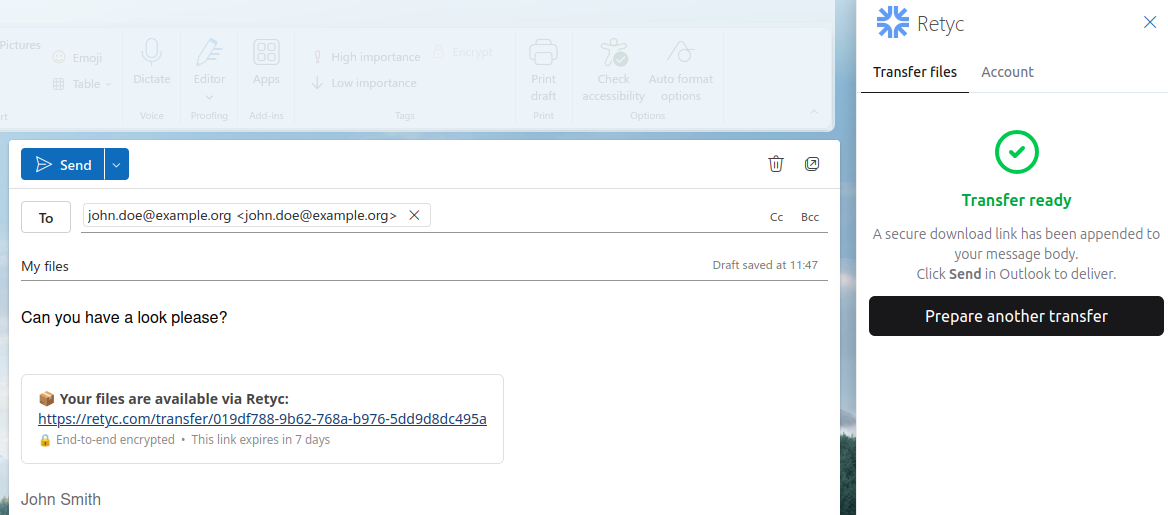
Once the transfer is ready, a secure link is automatically inserted into your email body. Click Send in Outlook to deliver it.