Deposit link
The deposit link is available on the Solo and Business plans.
The deposit link is a personal file-reception link. Share it with anyone to let them send you files securely, without exposing your email address.
The sender does not need to set a password to send you files, nor any plan: a free account is enough, or even no account at all if you allow it. It is the easiest way to receive encrypted files from other people! Each send is limited to 100 MB and remains available for 7 days in your inbox.
Create a deposit link
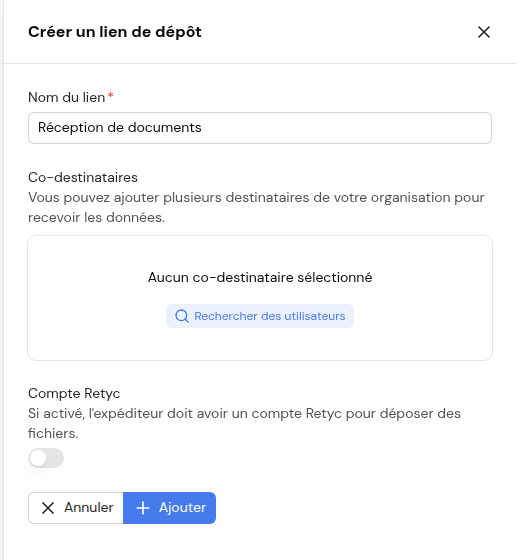
- Go to Dashboard > Deposit box > Add a deposit
- Choose Deposit link
- Give the link a name (internal use, to help you find it again)
- Choose whether a Retyc account is required or optional to deposit
- Optionally add co-recipients (members of your organization)
- Confirm
Get and share the link
From Deposit box > My deposits, Deposit link tab, click Copy link next to the relevant deposit. Share this link with your contacts (email, email signature, website…).
You share your deposit link
        ↓
The sender opens the link → drops their files → clicks Send!
        ↓
The files are encrypted with your public key (and those of the co-recipients)
        ↓
You find them in Dashboard > Transfer > Inbox
What the sender sees
The sender arrives on a simple upload form:
- A file drop zone (Drop your files here)
- A Title field (optional, not encrypted)
- A Message field (optional, encrypted)
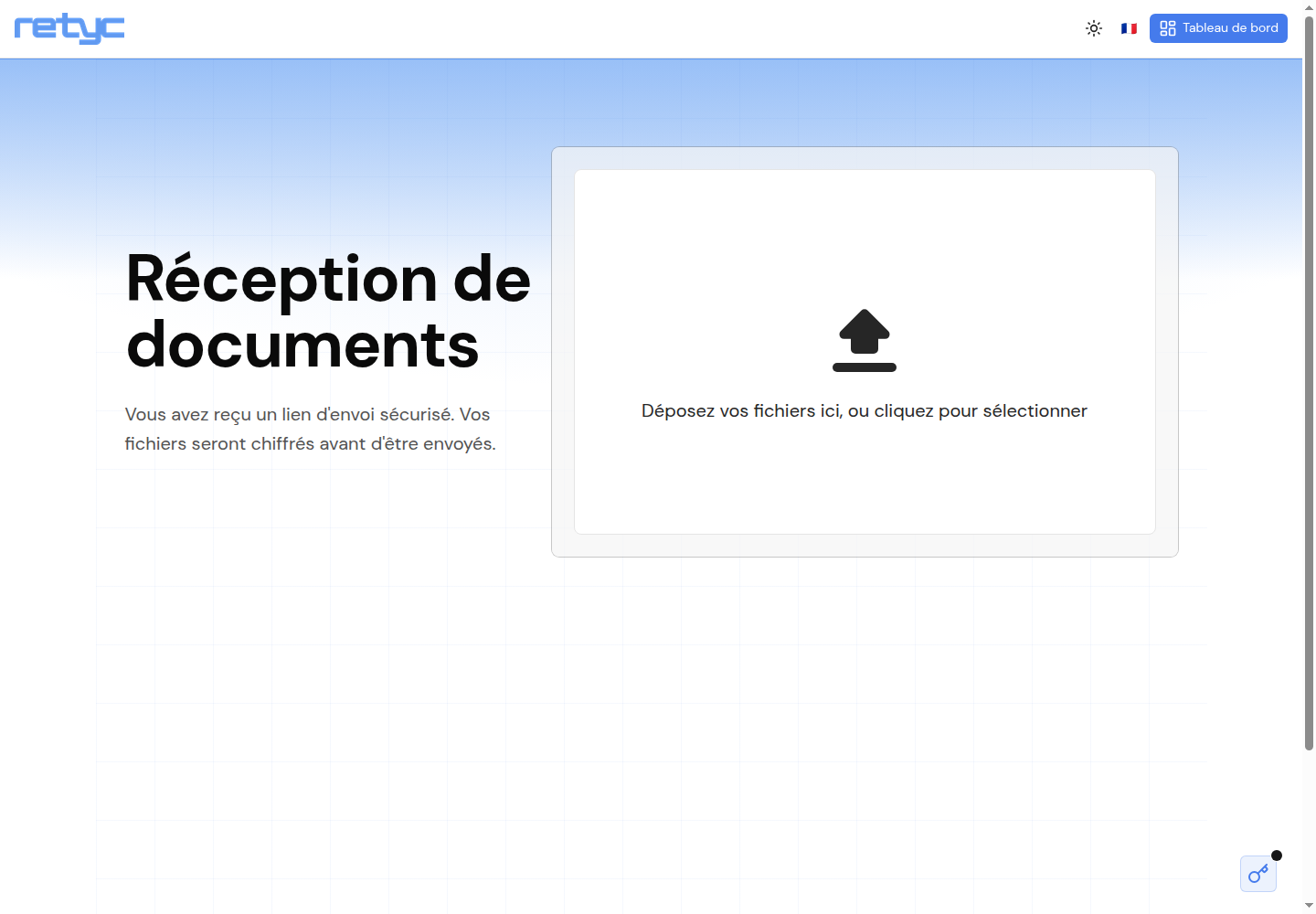
If you made the Retyc account required, the sender must sign in before depositing. If the account is optional, an email verification code (OTP) may be requested before sending.
Privacy
Your email address is never exposed to the sender. The link only contains a technical identifier associated with your public key.
Receiving the files
Files sent through your deposit link appear under Dashboard > Transfer > Inbox. Unlock your key with your passphrase to decrypt and download them. The deposit's co-recipients also receive them in their own inbox.
Typical use cases
- Client → Service provider: a client sends documents
- Job application: a recruiter shares their link to receive resumes
- One-off collection: securely receiving supporting documents