Manage your account
Your Retyc account settings are accessible from the user menu, at the bottom of the dashboard sidebar.
Accessing settings
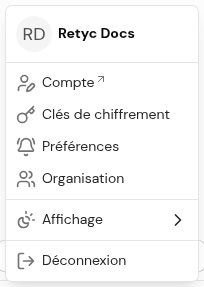
Click on your name at the bottom of the sidebar, then on Account. You are then taken to your profile management page, hosted by our authentication service.
Changing your password
- Access your account
- In the Account Security section, click on Login
- On the Login page, click on Update
- Follow the instructions to choose a new password
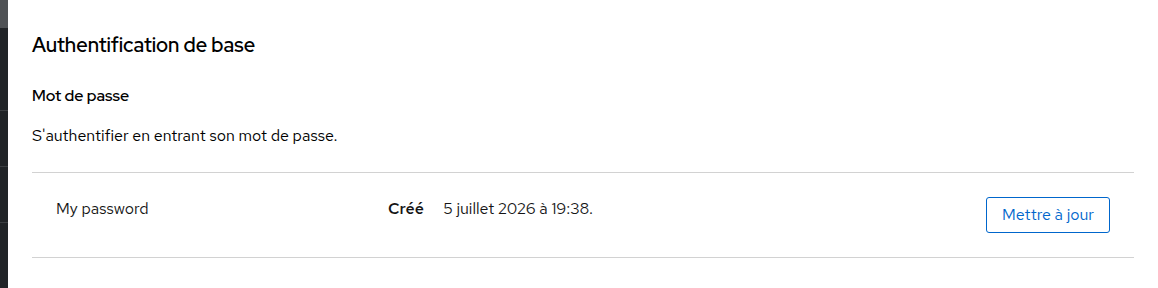
Use a unique password of at least 16 characters, preferably generated by a password manager.
Enabling two-factor authentication (2FA)
Two-factor authentication adds an extra layer of security to your login: in addition to your password, a temporary code is required each time you log in.
- Access your account
- In the Account Security section, click on Login
- On the Login page, click on Set up Authenticator App
- Scan the QR code with an authenticator app (Google Authenticator, Aegis, Bitwarden…)
- Enter the generated code to confirm activation

Keep your recovery codes in a safe place. If you lose access to your authenticator app without the backup codes, you will no longer be able to log in.
Login via an identity provider
If you signed up with Google, Microsoft, GitHub, or ProConnect, you have no Retyc password to manage. Security management is handled from your account settings at the identity provider concerned.