Manage your account
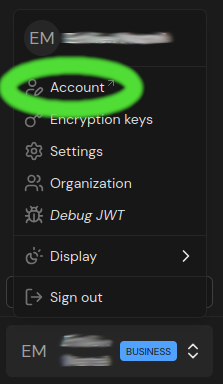
Your Retyc account settings are accessible via the Account menu in the navigation bar, at the top right of the interface.
Accessing settings
Click on your avatar or name at the top right, then on Account. You are then taken to your profile management page.
Changing your password
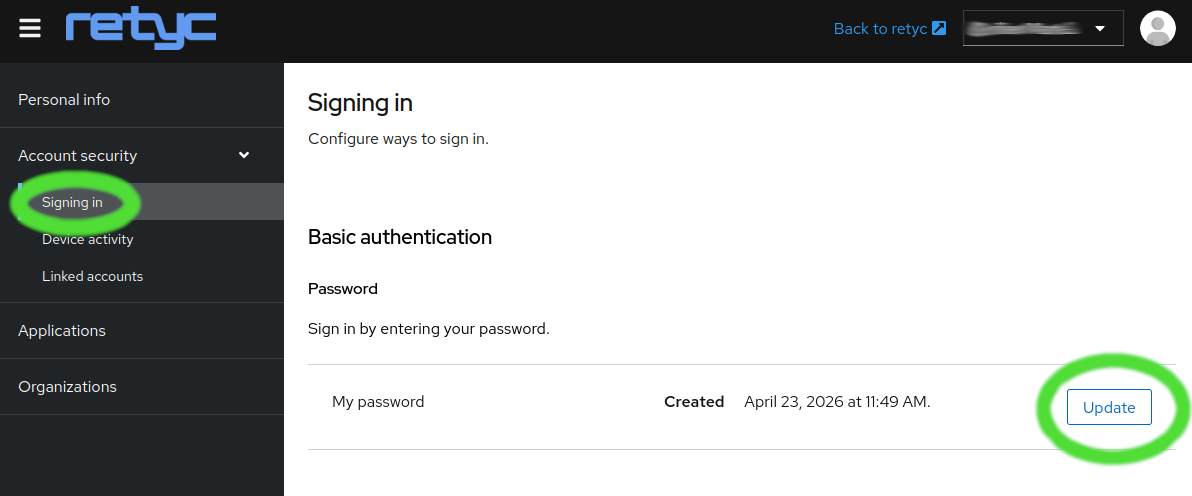
- Access your account
- In the Account Security section, click on Login
- On the Login page, click on Update
- Follow the instructions to choose a new password
Use a unique password of at least 16 characters, preferably generated by a password manager.
Enabling two-factor authentication (2FA)
Two-factor authentication adds an extra layer of security to your login: in addition to your password, a temporary code is required each time you log in.
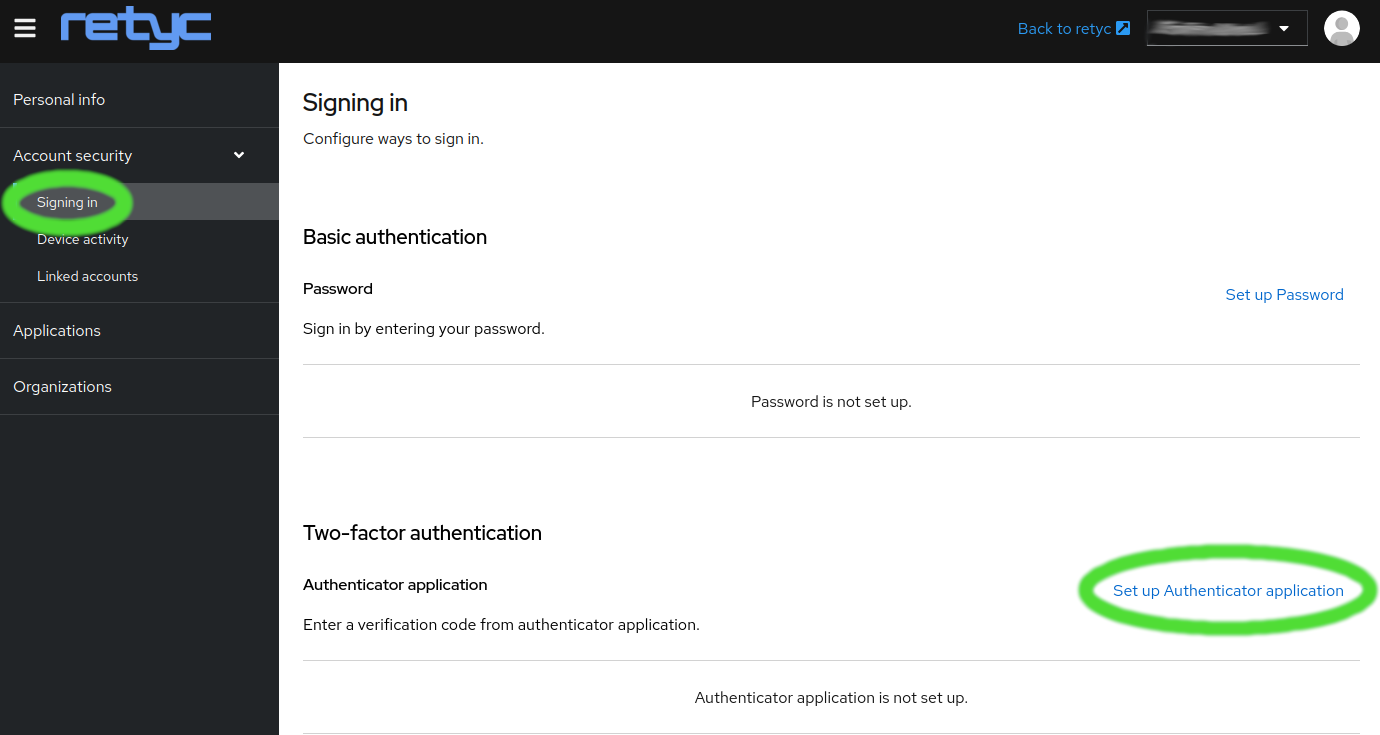
- Access your account
- In the Account Security section, click on Login
- On the Login page, click on Set up Authenticator App
- Scan the QR code with an authenticator app (Google Authenticator, Aegis, Bitwarden…)
- Enter the generated code to confirm activation
Keep your recovery codes in a safe place. If you lose access to your authenticator app without the backup codes, you will no longer be able to log in.
Login via Google or GitHub
If you signed up with Google or GitHub, you have no Retyc password to manage. Security management is handled from your Google or GitHub account settings.